
 Alpha
AlphaSetup guide
Get Lotzy ready in a few minutes.
Every step from download to your first generation. All you need is a Higgsfield account.
Download and install Lotzy
- On the Download page, accept the terms and download Lotzy-Setup.
- Run the file and accept the agreement in the installer.
- Choose an install folder and click Install. Shortcuts are added to the desktop and Start menu.
- When Lotzy opens, sign in with Google or your email. Once you are approved, the app opens by itself.
Alpha builds are not digitally signed yet, so Windows may show this warning. Click More info, then Run anyway. If you downloaded the file from this site, it is safe to continue.
Get your Higgsfield key
Lotzy generates images and videos with your own Higgsfield account, so you need an API key from Higgsfield.
- Sign in to Higgsfield and open API keys in the Higgsfield Console.
- Create a new key. Higgsfield gives you two values: an ID and an API key.
- Copy both somewhere. Lotzy needs both of them.
a1b2c3d4-…-9f8eThe key’s identifier••••••••••••••••••••The secret part; keep it like a passwordThe API key is often shown only once, when it is created; if you lose it, create a new one. Generations are charged to your Higgsfield account, so it needs enough balance.
Add the key to Lotzy
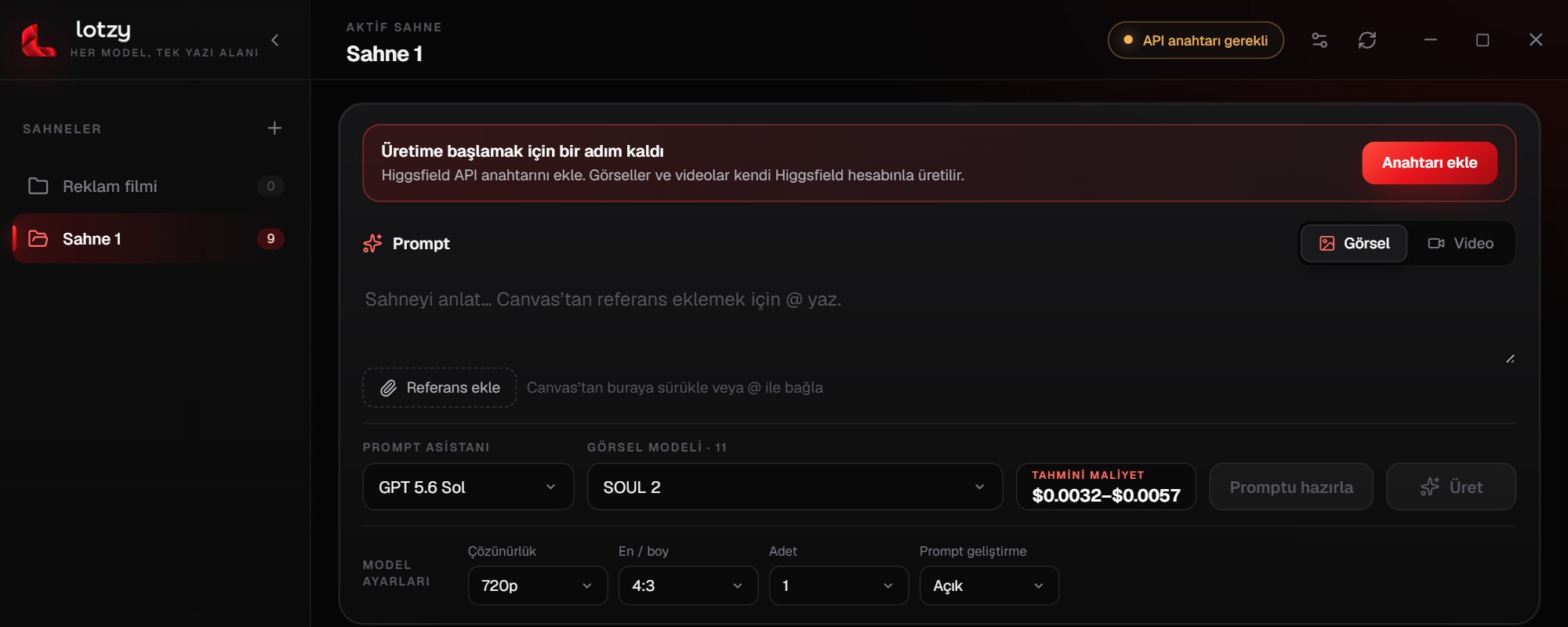
When you first open Lotzy you see an API key needed badge at the top right and a reminder above the prompt box.
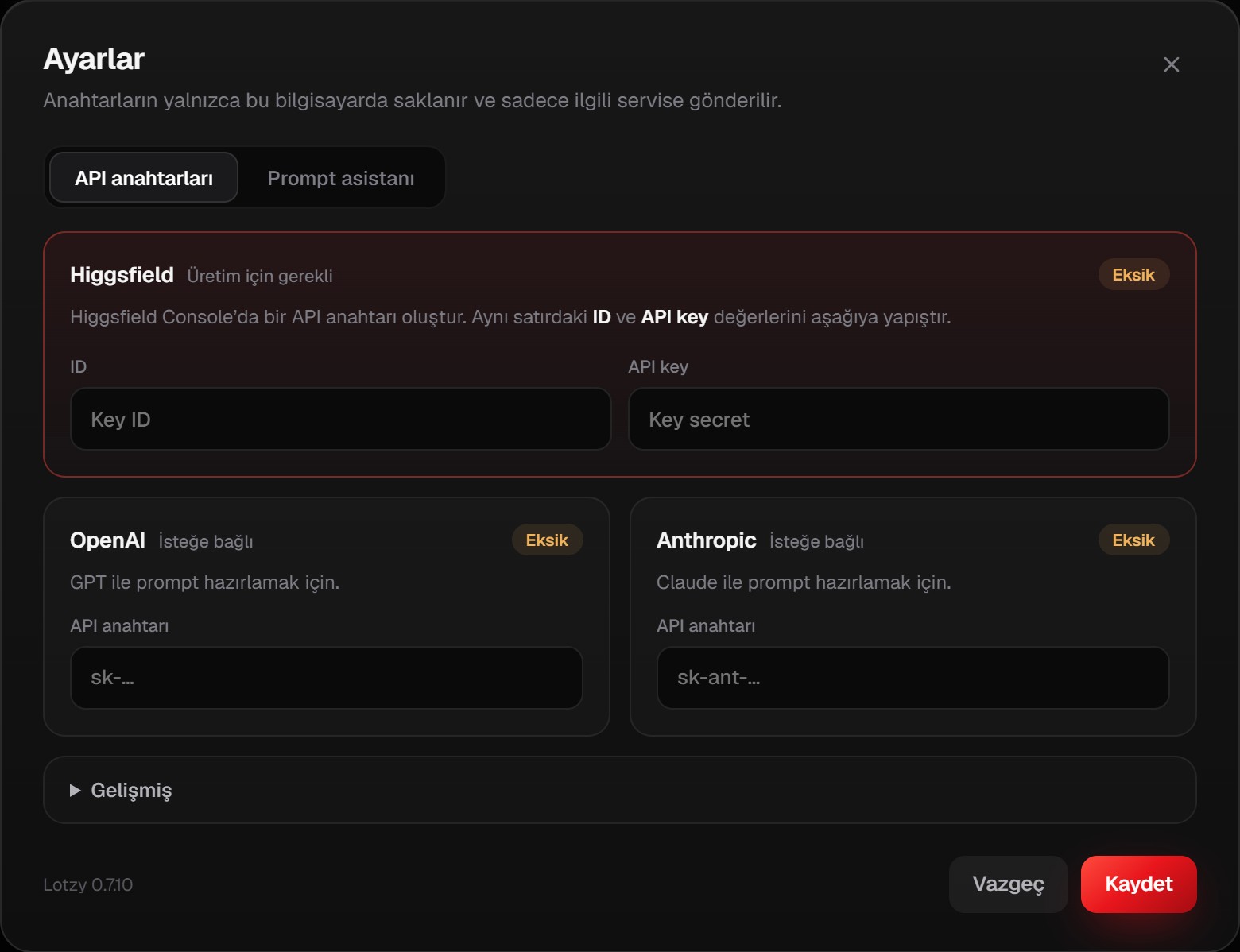
- The Settings window opens on the API keys tab.
- Paste the ID from Higgsfield into the left field and the API key into the right one.
- Click Save.
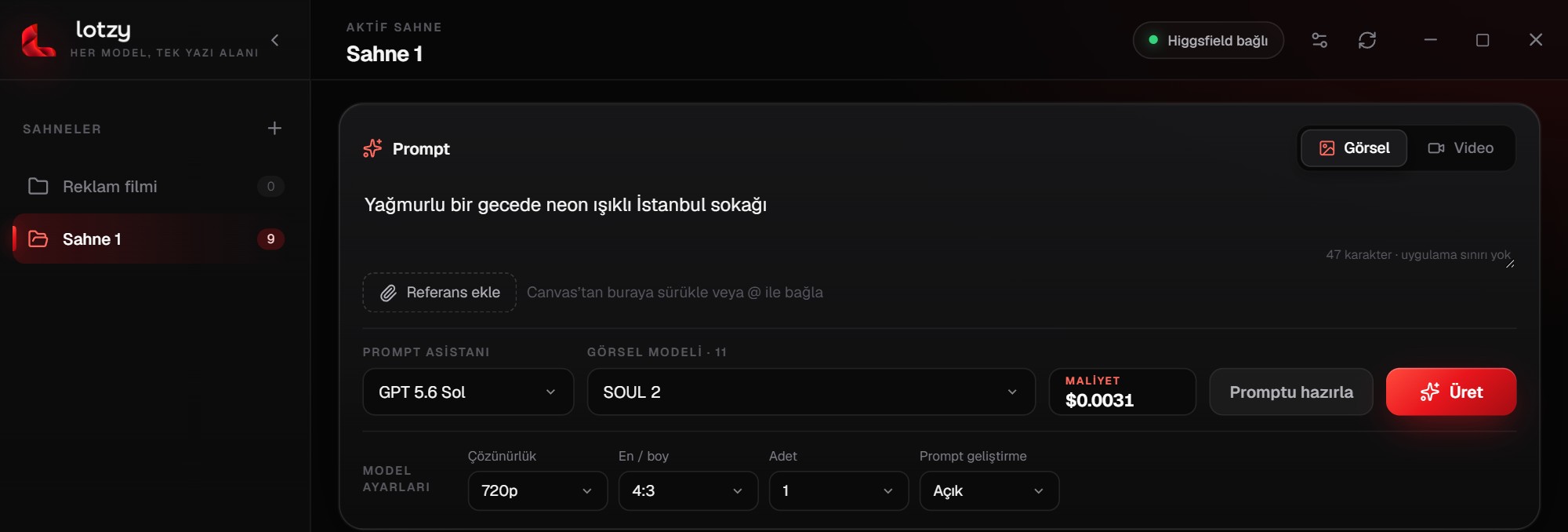
As soon as you save, the badge says Higgsfield connected and the Generate button works. No restart needed.
Prompt assistant Optional
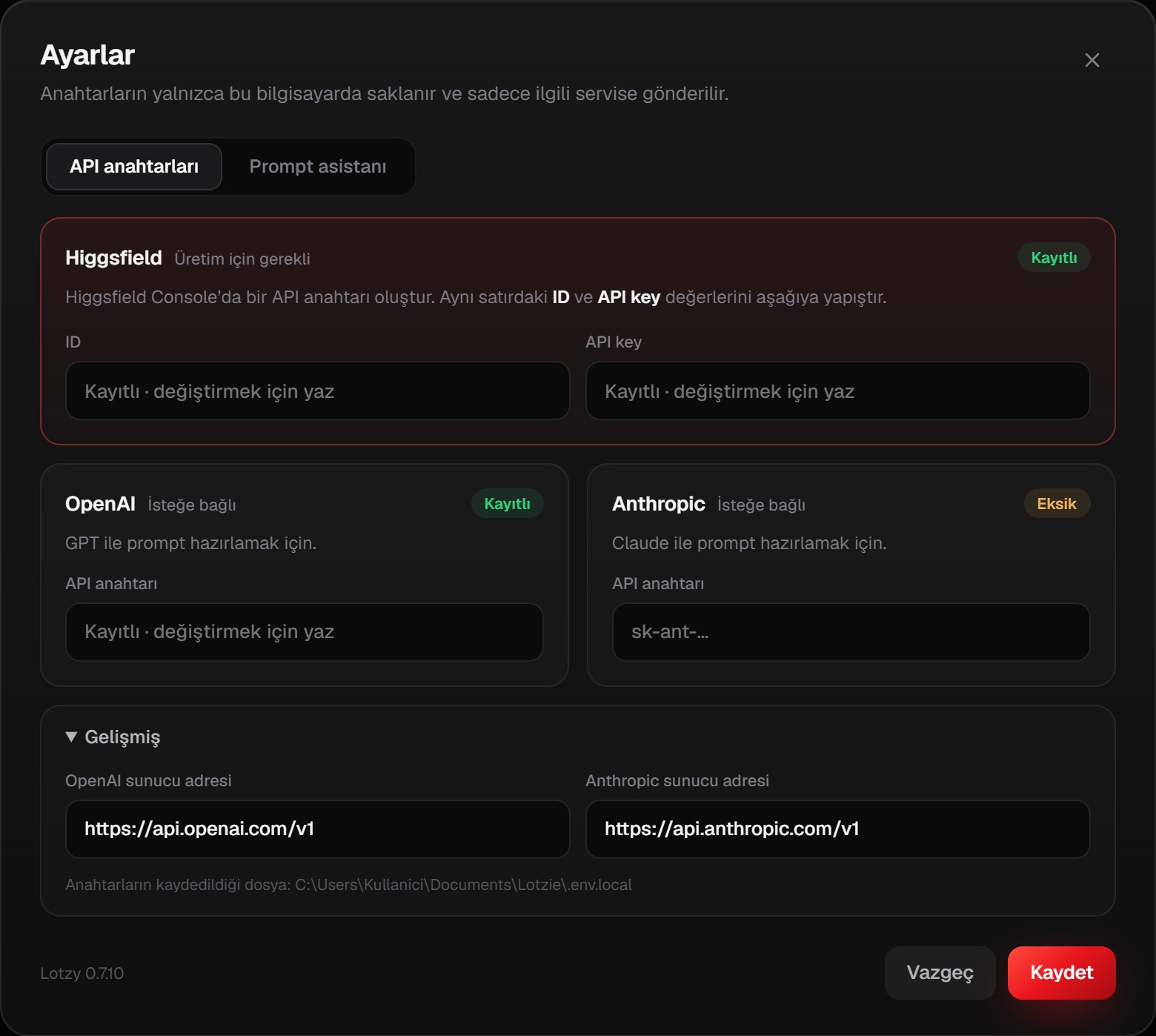
The Prepare prompt button turns a short draft into a detailed prompt for the model you picked. It needs a GPT (OpenAI) or Claude (Anthropic) key. It is not required for generating.
- Create an API key at platform.openai.com for OpenAI or console.anthropic.com for Anthropic.
- In Lotzy, paste it into the matching field under Settings → API keys and save.
- Pick that model from the Prompt assistant menu in the prompt box.
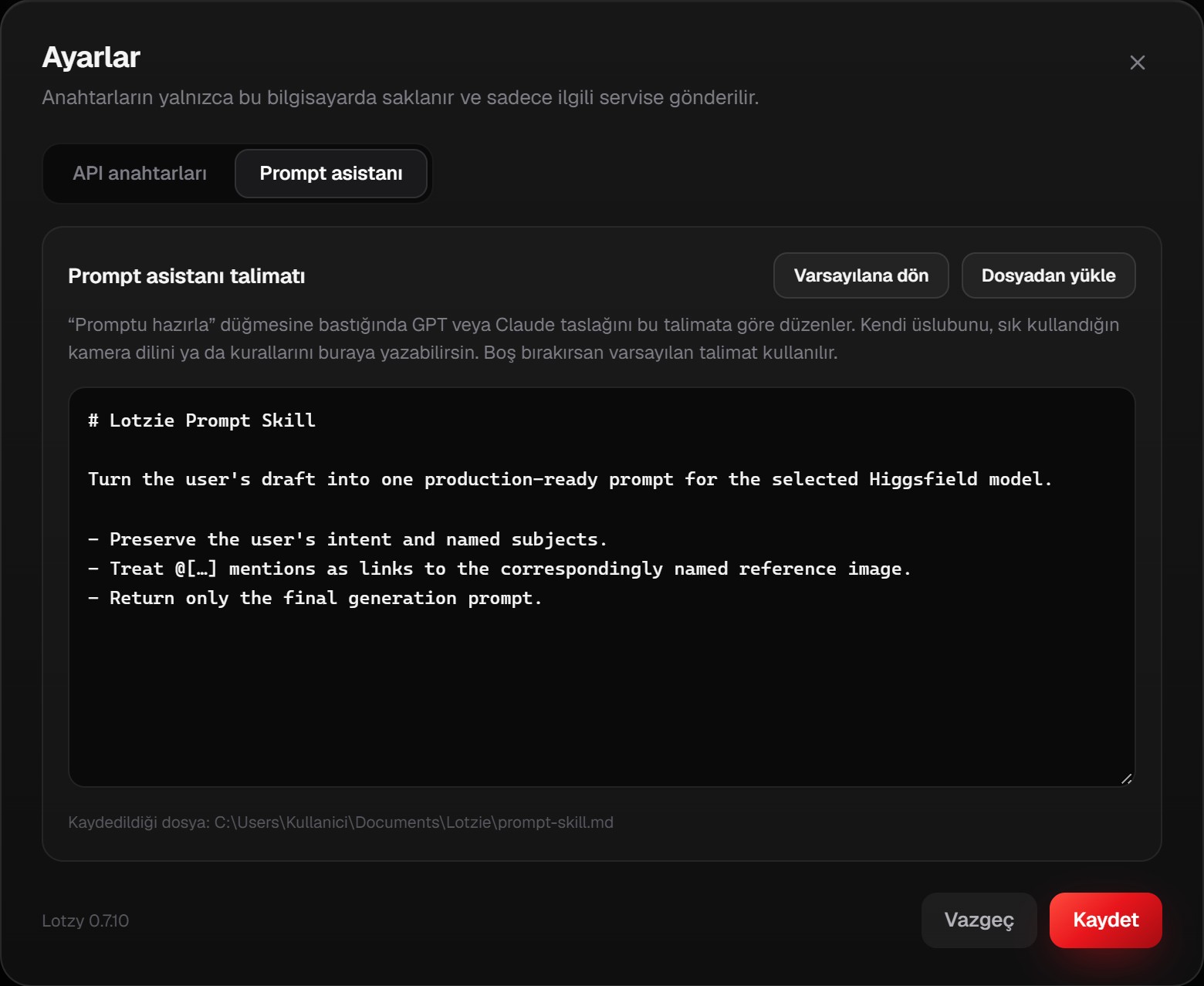
You can change the assistant’s style on the Prompt assistant tab: write your own camera language or rules, load a .md file, or go back with Reset to default.
Your first generation
- Create a scene with + in the left menu. Every scene is a folder on your computer.
- Pick Image or Video at the top, then the model.
- Describe what you want to see. To add a reference image, drag an image from the canvas into the prompt box or type @.
- Check the Estimated cost and click Generate.
A job card appears on the canvas right away and turns into the result in the same spot when it finishes. The file is saved to the scene folder. Drag the film icon in the card header to drop the result straight onto a Premiere timeline.
Click the history icon in a card header to bring back that generation’s prompt, model and references.
Are your keys safe?
- Your keys are stored only on your own computer, in the
Documents\Lotzyfolder. They are never sent to Lotzy’s servers. - Each key is sent only to its own service (Higgsfield, OpenAI or Anthropic).
- Saved keys are never shown in the interface again, so they don’t appear when you share your screen.
- Don’t share your keys. If you think one leaked, revoke it in that service’s dashboard and create a new one.
Troubleshooting
I get “Higgsfield did not accept the key”
Copy the ID and API key from the Higgsfield Console again and make sure there are no spaces at the start or end. Both fields must belong to the same key.
The badge still says “API key needed”
Both Higgsfield fields must be filled in together. Make sure you pasted both and clicked Save.
The “Prepare prompt” button is grey
The prompt box may be empty, or the selected assistant’s (GPT or Claude) key may be missing. Hover over the button to see why.
The “Generate” button is grey
It stays disabled if no scene is selected, the prompt is empty, or the number of references doesn’t fit the model. Hover over it to see why.
A video won’t play on the canvas
Lotzy plays MP4 (H.264) and WebM videos. Convert other formats to one of these.
Ran into something not listed here? Write to us from the feedback page.